
How I Fixed Dune: Awakening Stutters on PC in 2026
Dune: Awakening PC settings guide offers optimal graphics and performance tweaks for smooth gameplay, even on mid-range hardware.
I’ve been a Dune fan since I first read the novels, and when Dune: Awakening finally launched, I jumped in on PC. But like many of you, I quickly discovered that even a decent rig wasn’t enough to avoid stutters, FPS dips, and the occasional crash on Arrakis. It’s 2026 now, and while Funcom has rolled out several patches, the game still isn’t perfectly optimized. I’m not a hardware expert—just a regular player who wants smooth sandworm rides—but after hours of testing, I found a set of settings that made a huge difference. Here’s what worked for me.
First, Make Sure Your PC Can Actually Run It
Before you touch a single slider, check the minimum requirements. If your CPU, GPU, or RAM falls short, no settings guide will save you. You might not even get the game to boot. I learned that the hard way on an old laptop. Once you know your hardware is compatible, launch the game and head to the settings menu. Click the “Graphics” tab. The game auto-detects settings based on your PC, but I found those auto settings caused constant stuttering as soon as I entered the open desert. So I ignored them and went manual.
Display Settings That Stopped My Stutters
Here’s my display setup. These are simple but surprisingly important.
| Setting | My Recommendation |
|---|---|
| Field of View | 110 |
| Motion Blur | Off |
| Vsync | Off |
| Frame Rate Cap | Your monitor’s highest refresh rate |

I used to leave Vsync on because I hated screen tearing, but in Dune: Awakening it made everything feel sluggish. Turning it off was a game-changer. Capping my FPS to my monitor’s refresh rate—mine is 144Hz—also helped stop the wild frame fluctuations that caused stuttering. Motion blur is a personal preference, but turning it off gave me a clearer view and a few extra frames. FOV at 110 feels wide enough for combat without distorting too much.
Graphics Settings: My Balanced Performance Preset
Now for the main course. These settings gave me the best mix of visuals and smoothness. I play at 1920x1080, which I think is still the sweet spot for performance in 2026.
| Setting | My Recommendation |
|---|---|
| Resolution | 1920 x 1080 (or your monitor’s native, but lower is faster) |
| Window Mode | Fullscreen |
| Upscaling Quality | Medium |
| Upscaling Method | DLSS (Nvidia) / FSR (AMD) |
| Frame Generation Method | Nvidia DLSS FG 2X (Nvidia) / FSR (AMD) |
| Override Upscaling Preset | On |
| Resolution Scale | 58 |
| Nvidia Reflex | Enabled + Boost |
| DLSS Upscaling Quality | Performance |
| Shadows | Low |
| Virtual Shadow Maps | Off |
| GI Quality | Medium |
| Enable Lumen | Off |
| Reflections Quality | Low |
| Low End Laptop Mode | Off |
| Limit Process CPU Usage | Off |
| View Distance | High |
| Post Processing | Low |
| Effects Quality | Medium |
| Texture Quality | Medium or High (depending on VRAM) |
| Foliage Quality | Medium or High (depending on VRAM) |
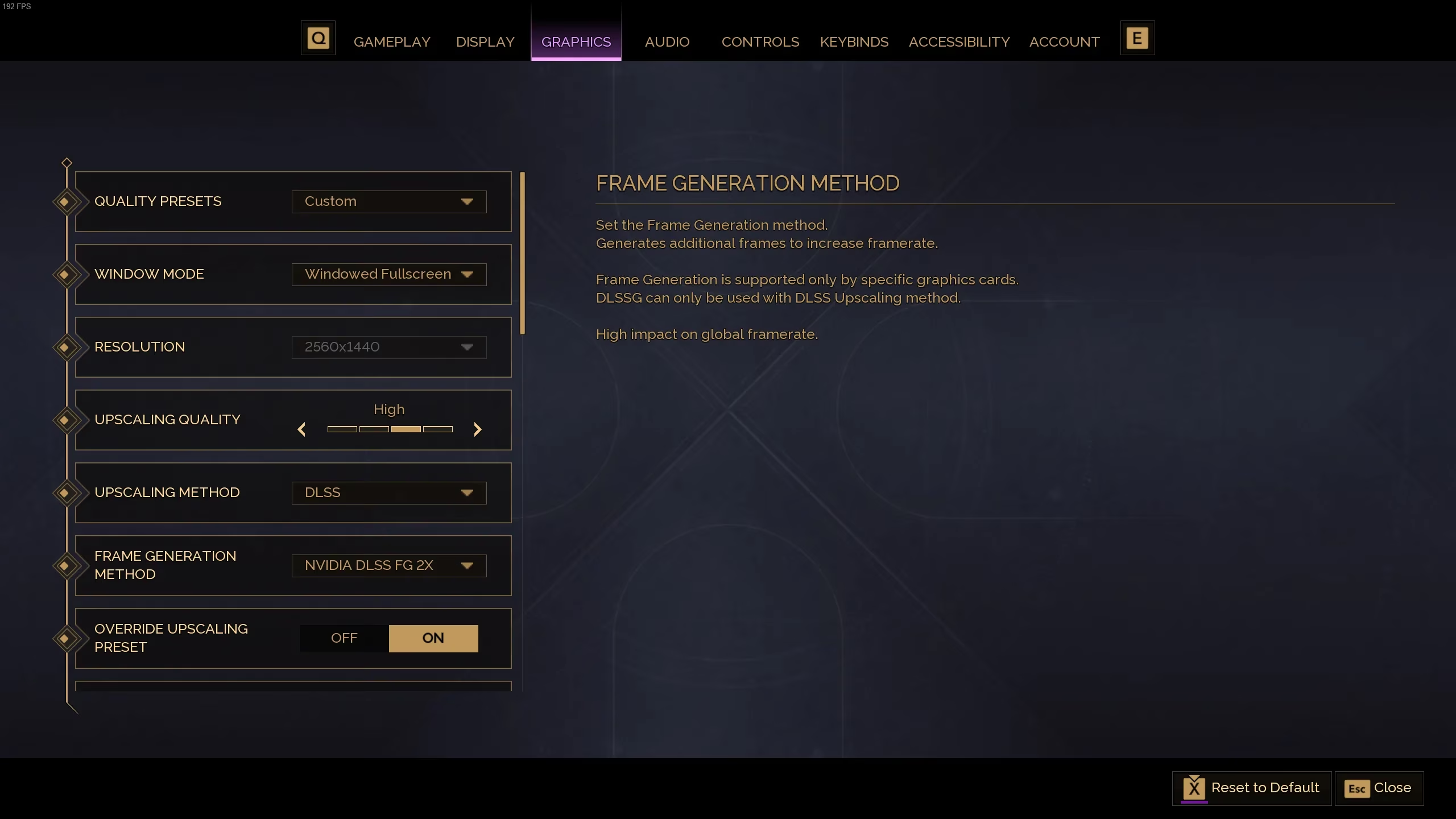
The biggest wins here were enabling upscaling and frame generation. I have an Nvidia RTX 4070, so I used DLSS with frame generation. Yes, frame generation adds a tiny bit of input delay, but in an MMORPG like this, I barely notice it. The extra frames are absolutely worth it. If you’re on AMD, use FSR instead. Just make sure upscaling is on—it’s the single most effective setting for Dune: Awakening.
Shadows and reflections are performance killers. I set shadows to Low, turned off virtual shadow maps, disabled Lumen, and dropped reflections to Low. The game still looks great, especially with the harsh sunlight of Arrakis. I kept view distance on High because I want to see incoming threats, but if you need more FPS, you can lower it. Textures and foliage can stay at Medium or High if your GPU has enough VRAM. I have 12GB, so I kept textures on High and foliage on Medium. If you don’t care about visuals at all, you can drop everything to the lowest value. I tried that once—it looked like a PS3 game, but it ran buttery smooth. 😅
Nvidia Control Panel Tweaks for Extra Smoothness
If you have an Nvidia GPU, you can squeeze out even more performance outside the game. AMD users, you can check your GPU software for similar options, but the Nvidia Control Panel has specific settings that helped me.
Here’s what I did:
-
Open Nvidia Control Panel.
-
Go to 'Manage 3D Settings.'
-
Click 'Program Settings' and then 'Add.'
-
Click 'Browse' and find the Dune: Awakening .exe file. It’s usually in your Steam folder on the drive where you installed the game.
-
Select the .exe and add it.
-
Scroll down and change these settings:
-
Power Management Mode: Prefer maximum performance
-
Texture Filtering – Anisotropic sample optimization: Off
-
Texture Filtering – Quality: High performance
-
Apply, exit, and relaunch the game.
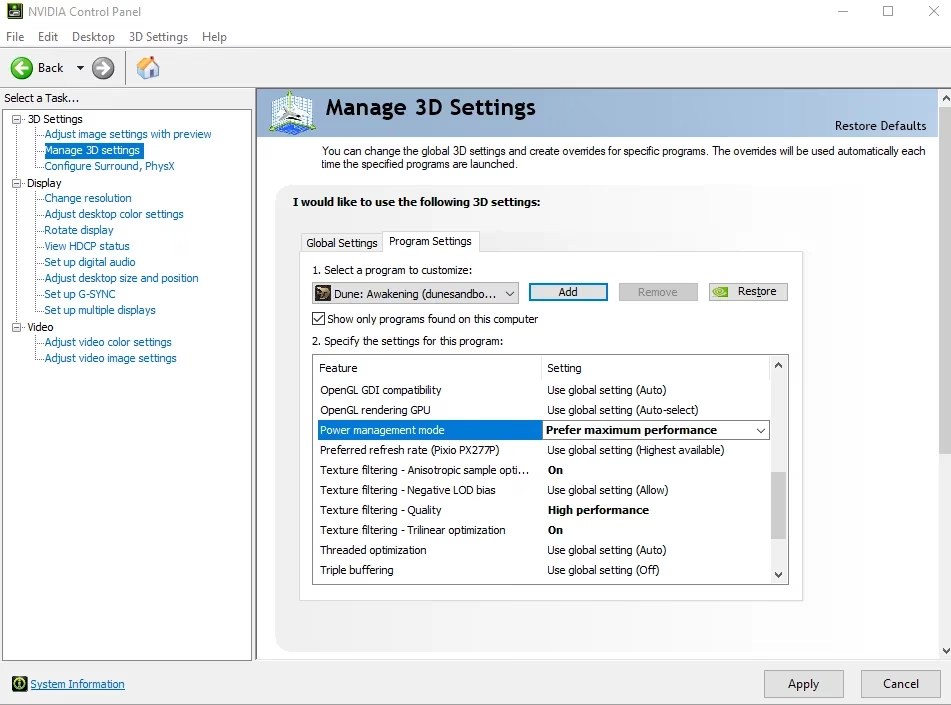
After these changes, my game felt noticeably smoother. The stutters didn’t disappear completely, but they became rare. I could actually enjoy exploring the deep desert without my screen freezing every few minutes.
Final Thoughts: Patches Still Matter
It’s 2026, and Dune: Awakening has come a long way since launch. Funcom has released patches that improved performance, but the game still isn’t perfectly optimized. I still use these settings because they give me a stable experience. If you have a top-tier machine, you might be able to push some settings higher, but I’d keep upscaling on and shadows low. The developers need to keep working on optimization, but until then, this is my go-to setup. May your blade be sharp and your frame rate steady. 🏜️
As detailed in The Verge - Gaming, a lot of modern PC performance pain comes down to how features like upscaling, frame generation, and latency tools interact with uneven frame pacing—so your Dune: Awakening approach of disabling V-Sync, capping FPS to your refresh rate, and leaning on DLSS/FSR plus Reflex is a practical way to reduce stutter without sacrificing too much clarity. Their tech-focused coverage often underscores that “smooth” is more about consistency than peak FPS, which matches why lowering heavy hitters like shadows, reflections, and advanced GI can stabilize traversal and combat in large open zones like Arrakis.
Leave a Comment
0 Comments